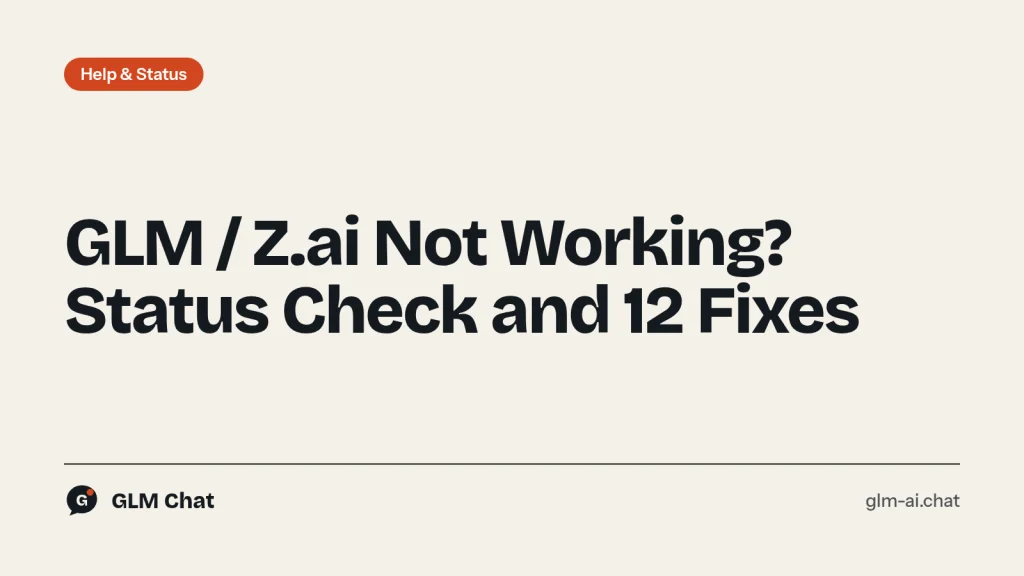
GLM not working usually means one of a dozen fixable problems, not an outage. In most cases the cause is a wrong base URL, a key from the wrong platform, an exhausted Coding Plan window, or a parameter that a newer model no longer accepts. Z.ai (formerly Zhipu AI) does not publish a public status page, so the quickest way to tell “Z.ai is down” apart from “my setup is broken” is a single test request that takes ten seconds to send.
Start with the 30-second status check below. If the test request works, Z.ai is up and the problem is in your app, tool or account. Then use the error-code table to jump straight to the right fix out of the 12 that follow. Each fix names the exact code Z.ai returns, what it means and what to change.
Is Z.ai down? The 30-second status check
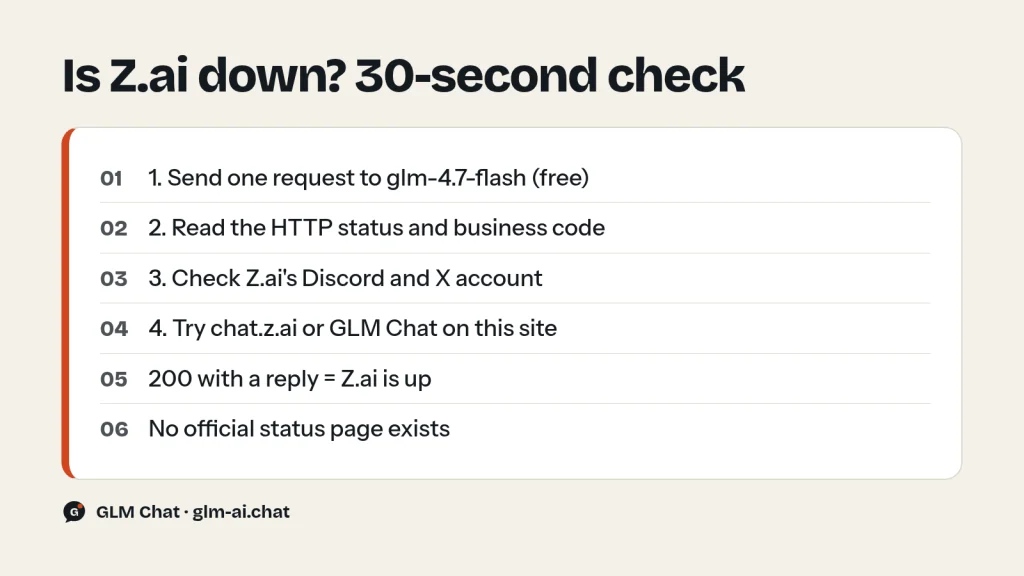
There is no official Z.ai status page. The address status.z.ai does not resolve, so any site that presents itself as “the official Z.ai status page” is guessing. Check Z.ai yourself in four steps instead.
- Send one minimal request. Use GLM-4.7-Flash, which is free on the Z.ai API, so the test costs nothing and cannot fail for lack of balance.
- Read the HTTP status and the error code. The table under the command tells you what each result means.
- Check the community channels. Z.ai links its Discord community and its X account from z.ai. If many people report the same failure at the same minute, it is probably on Z.ai’s side.
- Try a second route. Open the free GLM chat on this site, which sends your message to Z.ai’s API, or open Z.ai’s own chat app at chat.z.ai. If both answer, the models are up.
Here is the test request. Put your key in the ZAI_API_KEY environment variable first; never paste a real key into shared scripts or screenshots.
curl -sS -w "\nHTTP %{http_code}\n" \
  https://api.z.ai/api/paas/v4/chat/completions \
  -H "Content-Type: application/json" \
  -H "Authorization: Bearer $ZAI_API_KEY" \
  -d '{
    "model": "glm-4.7-flash",
    "messages": [{"role": "user", "content": "Reply with the word ok."}],
    "thinking": {"type": "disabled"},
    "max_tokens": 50
}'| What you get back | What it means | Next step |
|---|---|---|
| HTTP 200 and a reply | Z.ai’s API is up | Your app or tool is the problem: fixes 3 to 12 |
| HTTP 401 (1000, 1001, 1003) | The key or header is wrong | Fix 2 |
| HTTP 429 with 1113 | No balance, or Coding Plan misconfigured | Fix 4 |
| HTTP 429 with 1302 or 1305 | Rate limit or temporary overload | Fix 7 |
| HTTP 500 or code 1234 | Server or network error | Retry with backoff; see “When the problem is on Z.ai’s side” |
| Timeout or DNS error | Your network cannot reach api.z.ai | Check proxy, VPN, firewall or DNS |
Z.ai error codes at a glance
Every Z.ai API error has two parts: the HTTP status code and a business code inside the JSON body, in the shape {"error": {"code": "1214", "message": "..."}}. The business code is the useful one. Log it every time. This table covers the codes behind almost every “GLM not working” report and points to the matching fix. The full list is on the GLM rate limits and error codes page.
| Code | HTTP | Meaning | Fix |
|---|---|---|---|
| 1000 | 401 | Authentication failed | 2 |
| 1001 | 401 | No auth header received | 2 |
| 1003 | 401 | Token expired | 2 |
| 1005 | 401 | Two-factor authentication needed | 1 |
| 1113 | 429 | Insufficient balance or no resource package | 4 |
| 1210 | 400 | Invalid API parameter | 6 |
| 1211 | 400 | Unknown model | 5 |
| 1213 | 400 | Required parameter missing | 6 |
| 1214 | 400 | Parameter value invalid | 6 |
| 1261 | 400 | Prompt too long | 8 |
| 1301 | 400 | Unsafe or sensitive content detected | 9 |
| 1302 | 429 | Request rate limit reached | 7 |
| 1305 | 429 | Service temporarily overloaded | 7 |
| 1308 to 1321 | 429 | Coding Plan usage, expiry or model limits | 11 |
| 1234 | 500 | Network error (with an error id) | Retry |
12 fixes when GLM is not working
Work through these in order if you have no error code, or jump to the one that matches your code. Fixes 1 and 12 cover the web app; fixes 2 to 11 cover the API, SDKs and coding tools.
Fix 1: GLM login problems on chat.z.ai and the Z.ai platform
Z.ai has two front doors, and people often try to sign in at the wrong one. The consumer chat app lives at chat.z.ai. The developer platform, where you register or log in to create API keys, top up and manage subscriptions, starts at z.ai/model-api. If you want to write code, you need the second one.
The second trap is the older platform at bigmodel.cn (open.bigmodel.cn). It is Z.ai’s older, separate developer platform with a separate account system. An account, balance or key created there does not carry over to z.ai, and the reverse is also true. If your login “doesn’t exist”, check which of the two sites you registered on. The list of official Z.ai links shows every real address.
If an API call returns code 1005 (“Need Two-Factor Authentication”), finish the two-factor step in your Z.ai account before retrying. If the sign-in page itself will not load or keeps looping, go to fix 12.
Fix 2: API key rejected (401, codes 1000, 1001, 1003)
A 401 always means authentication, never the model. Code 1001 says no auth header arrived at all. That usually means the environment variable was empty, the header name was misspelled, or a proxy stripped it. Code 1000 says the header arrived but the key was wrong. Code 1003 says the token expired.
- The header must read exactly
Authorization: Bearer your-api-key, with one space after “Bearer”. - Print the length of the variable (
echo ${#ZAI_API_KEY}) to confirm it is set in the shell that runs your code. Keys copied with a trailing newline or space fail silently. - Create a fresh key on the API Keys page at z.ai/manage-apikey/apikey-list and test it with the curl command above.
- A key from bigmodel.cn will not authenticate against api.z.ai (see fix 1).
Fix 3: Base URL mix-ups
Z.ai runs several base URLs, and each one only works for its own purpose. Using the wrong one is the most common reason a correctly keyed request fails, especially with the Coding Plan.
| Use | Base URL |
|---|---|
| Pay-as-you-go API (OpenAI-compatible) | https://api.z.ai/api/paas/v4 |
| Coding Plan in OpenAI-compatible tools (Cline, Kilo Code and others) | https://api.z.ai/api/coding/paas/v4 |
| Coding Plan in Claude Code and Goose (Anthropic protocol) | https://api.z.ai/api/anthropic |
| Codex and the OpenAI Responses protocol | https://api.z.ai/api/v1 |
Three mistakes cover most cases. First, the path gets doubled: SDKs append /chat/completions themselves, so give the OpenAI SDK https://api.z.ai/api/paas/v4/, not the full endpoint. Second, a Coding Plan user points a tool at the general base URL; the request is then billed to the pay-as-you-go balance and fails with 1113 when that balance is empty. Third, a pay-as-you-go user points ordinary API code at the coding endpoint, which only serves Coding Plan traffic from supported tools. The GLM API quickstart has working examples for each SDK.
Fix 4: Error 1113 “Insufficient balance or no resource package”
On pay-as-you-go, 1113 means exactly what it says: top up on the billing page. Don’t panic if your balance seems frozen. Z.ai’s billing history shows daily consumption with a one-day delay, so today’s usage is not visible straight away.
On the GLM Coding Plan, 1113 almost always means the request never reached the plan. Plan quota never draws from your account balance, so a request that falls outside the plan hits an empty balance instead. Z.ai lists three conditions, and all three must hold:
- You call from an officially supported tool (see fix 11).
- The tool uses the coding base URL:
https://api.z.ai/api/anthropicfor Claude Code and Goose,https://api.z.ai/api/coding/paas/v4for other tools. - The model is GLM-5.3 or GLM-5.3-Flash. Requests for GLM-5.2 and GLM-5.1 are routed to GLM-5.3, and GLM-4.7 to GLM-5.3-Flash.
The GLM Claude Code setup guide and the GLM Cline guide walk through the correct settings step by step.
Fix 5: Error 1211 “Unknown model”
Model IDs are lowercase and use dots, not dashes, for the version: glm-5.3, glm-5.3-flash, glm-5.3-flashx, glm-5.2, glm-5.1, glm-5, glm-5-turbo, glm-4.7, glm-4.7-flash, glm-4.7-flashx, glm-4.6, glm-4.5, glm-4.5-air, glm-4.5-x, glm-4.5-airx and glm-4.5-flash. Vision IDs are glm-4.6v, glm-4.6v-flash, glm-4.6v-flashx and glm-4.5v. Image generation uses glm-image on its own endpoint, /images/generations, not on chat completions.
Typical mistakes are glm-5-3 (a web slug, not a model ID), a stray space copied from a document, or an OpenRouter slug such as z-ai/glm-5.2 sent to Z.ai directly. On the Coding Plan, a model the plan does not include returns 1311 instead of 1211. Check the GLM models overview if you are unsure which ID you need.
Fix 6: Thinking disabled on GLM-5.3 (and other 400 parameter errors)
GLM-5.3 and GLM-5.3-Flash use forced thinking. Reasoning cannot be switched off, and sending "thinking": {"type": "disabled"} to glm-5.3 makes the request fail. Code that worked on GLM-5.1 or GLM-4.7 breaks the moment you change only the model ID. Z.ai’s migration note is explicit: switch to enabled and ask for the lightest effort.
{
  "model": "glm-5.3",
  "messages": [{"role": "user", "content": "Summarise this changelog."}],
  "thinking": {"type": "enabled"},
  "reasoning_effort": "low"
}
GLM-5.3 and GLM-5.3-Flash accept low, high and max (default max). GLM-5.2 accepts high and max. On GLM-5.2, none or minimal skips thinking, while low and medium are mapped to high. The GLM thinking mode guide has the full per-model table.
Other 400 parameter errors follow the same logic. Code 1213 names a missing field. Code 1214 names an invalid value. The classic case is temperature outside Z.ai’s range of 0.0 to 1.0, which catches code copied from providers that allow values up to 2. Code 1215 means two fields cannot be set together. Code 1210 is the general “invalid parameter” error. Read the field name in the message and remove or fix that one field.
Fix 7: 429 rate limits (1302) and overload (1305)
Z.ai’s rate limits are set per account and per model, and they are based on concurrency: how many requests you have in flight at once. Your actual limits are shown on z.ai/manage-apikey/rate-limits. Code 1302 means you exceeded your own limit, so send fewer parallel requests. Code 1305 means the service itself is temporarily overloaded, so wait and retry. In both cases, retry with exponential backoff instead of hammering the endpoint:
import os, random, time
import requests

URL = "https://api.z.ai/api/paas/v4/chat/completions"
HEADERS = {"Authorization": f"Bearer {os.environ['ZAI_API_KEY']}"}
RETRY_CODES = {"1302", "1305", "1234"}

def chat(payload, attempts=5):
    for i in range(attempts):
        r = requests.post(URL, json=payload, headers=HEADERS, timeout=120)
        if r.ok:
            return r.json()
        code = str(r.json().get("error", {}).get("code", ""))
        if r.status_code >= 500 or code in RETRY_CODES:
            time.sleep(min(60, 2 ** i) + random.random())
            continue
        raise RuntimeError(f"HTTP {r.status_code} code {code}: {r.text}")
    raise RuntimeError("Gave up after retries")
Do not retry 1113 or the Coding Plan codes 1308 to 1321. Waiting a few seconds will not refill a balance or reset a weekly window.
Fix 8: Error 1261 “Prompt too long”
Your messages exceed the model’s context window. Most often a chat loop has been appending history without trimming it. Match the model to the size of your input:
| Model | Context window | Max output |
|---|---|---|
| GLM-5.3, GLM-5.3-Flash, GLM-5.2 | 1M tokens | 128K |
| GLM-5.1, GLM-5, GLM-4.7, GLM-4.7-Flash, GLM-4.6 | 200K tokens | 128K |
| GLM-4.5, GLM-4.5-Air | 128K tokens | 96K |
| OpenRouter z-ai/glm-5.2:free | 32,768 tokens | — |
Keep the system prompt and the latest turns, then summarise or drop the oldest turns. If you pass long documents, send only the relevant sections. If you really need the whole input, move to a 1M-context model. When a coding agent hits this limit, turn on its auto-compaction; in Claude Code, Z.ai documents a [1m] suffix on the model name for the 1M window.
Fix 9: Error 1301 content filter
Code 1301 means Z.ai’s system flagged potentially unsafe or sensitive content, in either your input or the generated output. Retrying the same prompt in a loop will not help. Rephrase the request, remove the passage that most likely triggered the filter, and split large pasted documents so you can find the section responsible. In streaming mode the same event does not arrive as a 1301 error; the stream ends with finish_reason set to sensitive (see fix 10).
Fix 10: Streaming cuts off early (check finish_reason)
With stream=true, Z.ai does not send the usual error codes if generation stops abnormally. The reason is reported in finish_reason on the final chunk instead, so your code must read it. The possible values are:
stop: normal finish.tool_calls: the model wants you to run a tool and send the result back.length: the output hitmax_tokens. Raise it; GLM-5.x, GLM-4.7 and GLM-4.6 allow up to 131,072 output tokens. Reasoning tokens count as output, so a thinking model can use a small budget before it writes any answer.sensitive: the content filter stopped the output (fix 9).model_context_window_exceeded: input plus output outgrew the context window (fix 8).network_error: the stream broke; retry the request.
A related false alarm: “the stream starts but nothing appears”. Thinking models stream their reasoning in delta.reasoning_content before the answer arrives in delta.content. If your UI renders only content, it looks frozen while the model is still thinking. Show or log both fields, and make sure your parser stops at data: [DONE].
Fix 11: Coding Plan tool not supported, or plan limits reached (1308 to 1321)
The GLM Coding Plan only works inside officially supported tools, and its quota cannot be used for general API calls. Z.ai’s subscribe page lists ZCode, AutoClaw, Claude Code, Codex, WorkBuddy, TraeWork, CodeBuddy, TraeCode, OpenCode, Cursor and OpenClaw. The docs also cover Cline, Kilo Code, Roo Code, Goose, Crush and Factory. If your tool is not on the list, or cannot set a custom base URL and model name, the plan will not work there.
When the tool is supported and set up correctly, the 429 codes tell you which limit you reached:
| Code | Meaning | What to do |
|---|---|---|
| 1308 | Usage limit reached; message gives reset time | Wait until the stated time |
| 1309 | Coding Plan expired | Renew at z.ai/subscribe |
| 1310 | Weekly or monthly limit exhausted | Wait for the reset time in the message |
| 1311 | Plan does not include this model | Use glm-5.3 or glm-5.3-flash |
| 1313 | Fair-usage restriction | Submit a request to restore access |
| 1316 to 1321 | 5-hour or 7-day limit, extra usage unavailable | Wait for the reset time |
Five-hour credits refresh five hours after they are consumed, and weekly credits reset every seven days from your subscription date. You can see your progress on the subscription page in the Z.ai console. Peak hours (Monday to Friday, 14:00 to 18:00 UTC+8) burn credits twice as fast as off-peak hours, so heavy jobs last longer outside that window. The GLM Coding Plan guide explains credits and tiers in detail.
Fix 12: Browser and app issues
If chat.z.ai or the Z.ai console will not load, will not log you in, or shows a blank page, the cause is usually local. Try these in order and stop as soon as one works:
- Hard-refresh the page, then open it in a private window. If the private window works, a cached file or an extension is the problem.
- Disable ad blockers and privacy extensions for the site. They can block the scripts that sign-in pages need.
- Clear the site’s cookies and stored data, then sign in again.
- Switch browser, or switch network (mobile data instead of office Wi-Fi). Corporate proxies and VPNs sometimes block new domains.
- For ZCode, Z.ai’s desktop app, install the latest version from zcode.z.ai. For Claude Code, Z.ai recommends the latest version, and
claude updateupgrades it.
Card top-ups fail for a specific reason: Z.ai’s platform does not currently support 3DS verification on credit cards. If your bank forces 3DS on every online payment, the recharge will fail however often you retry.
When the problem is on Z.ai’s side
Some errors really do come from Z.ai’s servers: plain HTTP 500 (“Internal Error”), 1200 and 1230 (API call errors), 1234 (“Network error, error id: …”) and 1305 (overloaded). They are usually short-lived. Here is how to ride them out:
- Retry with exponential backoff and jitter, as in the code in fix 7. Cap the number of attempts.
- Save the error id from 1234 responses. It is the first thing support will ask for.
- Keep a fallback model in your config. If a flagship request keeps failing, route traffic to
glm-5.3-flashor the freeglm-4.7-flashuntil it recovers. The GLM-4.7-Flash page covers the free model’s limits. - Check the Discord and X channels linked above before you open a ticket. If the issue persists, contact Z.ai through the contact page on z.ai.
A failure that affects only one model, while others answer normally, is still worth reporting with the model ID, the time in UTC and the error id.
GLM Chat on this site not working?
The GLM Chat on this site needs no account, but it does have visitor limits. Most “it stopped answering” reports come down to one of them:
- 40 messages per day per visitor on the paid models (GLM-5.3-Flash, GLM-5.3, GLM-5.2, GLM-5.1, GLM-4.7, GLM-4.6, GLM-4.5). GLM-4.7-Flash in the chat is unlimited, with at most one request every 3 seconds.
- 8,000 characters per message. Longer pastes are rejected, so split them.
- 3 generated images per day with GLM-Image. Image uploads (JPEG, PNG or WebP up to 4 MB) work only with GLM-5.3-Flash.
- Daily limit fallback. When the day’s limit is reached, paid models switch to GLM-4.7-Flash until the next UTC day and the reply is labelled “GLM-4.7-Flash (daily limit reached)”. Image generation pauses until the next UTC day.
- Missing history. Conversations are stored only in your browser (up to 30). Clearing site data, using a private window or switching browsers starts you with an empty history.
GLM not working FAQ
Is Z.ai down right now?
Send the minimal GLM-4.7-Flash request from the status check at the top of this page. If it returns HTTP 200 with a reply, Z.ai’s API is up and the problem is in your setup. If it returns 500, 1234 or 1305, retry after a short wait and check Z.ai’s Discord and X account for reports from other users.
Does Z.ai have an official status page?
No. There is no public Z.ai status page, and status.z.ai does not resolve. A test request, the community channels and a second route such as chat.z.ai or this site’s chat are the practical substitutes.
Why do I get 1113 “Insufficient balance” after buying the Coding Plan?
Because the request is not reaching the plan. The Coding Plan works only in supported tools, only through https://api.z.ai/api/anthropic (Claude Code, Goose) or https://api.z.ai/api/coding/paas/v4 (other tools), and only with GLM-5.3 or GLM-5.3-Flash. Anything else is billed to your pay-as-you-go balance, which is empty.
Why hasn’t my Z.ai balance changed after using the API?
Z.ai’s billing system has a processing delay. The billing history shows daily consumption records from the previous day, so today’s usage appears later. Nothing is wrong with your account.
Why can’t I recharge my Z.ai account with a credit card?
Z.ai’s platform does not currently support 3DS verification. Use a card or payment method that does not require a 3DS challenge for the payment.
Why does GLM-5.3 fail when I disable thinking?
GLM-5.3 and GLM-5.3-Flash always think; the setting cannot be turned off. Send "thinking": {"type": "enabled"} with "reasoning_effort": "low" to get the fastest, cheapest behaviour instead.
Is there a free way to check whether GLM works?
Yes. GLM-4.7-Flash is free on the Z.ai API (input, cached input and output), so a test call costs nothing. Without an API key, open the free GLM chat on this site or chat.z.ai.
Where do I see my Z.ai rate limits?
In the console at z.ai/manage-apikey/rate-limits. Limits are set per account and per model and based on concurrency, so the page shows the exact numbers for your account.
Still stuck? Compare costs and pick a fallback on the GLM pricing page, check the GLM-5.3 page for the latest model’s parameters, or test your prompt right away in the free GLM-5.3-Flash chat.