To use GLM in Cline, open Cline’s settings in VS Code, choose “Use your own API Key”, set the API Provider to OpenAI Compatible, enter the base URL https://api.z.ai/api/coding/paas/v4 and your Z.ai API key, and type a custom model ID: glm-5.3 or glm-5.3-flash. That GLM Cline setup draws on the GLM Coding Plan, Z.ai’s flat-rate subscription for coding tools. If you would rather pay per token, the same provider works with the regular API base URL instead.
Below are the exact settings from Z.ai’s official Cline guide, which model to pick and why, the context window and image settings that trip people up, how to add Z.ai’s MCP servers to Cline, and a pay-as-you-go alternative that includes a completely free model. Z.ai, formerly Zhipu AI, maintains both endpoints used here.
What you need before you start
- VS Code with the Cline extension (installed in step 1).
- A Z.ai API key. For the plan route, the key must belong to the account that holds an active GLM Coding Plan. For the pay-as-you-go route, any Z.ai key with account balance works.
- A plan tier or API balance. The Coding Plan starts at $18 per month for Lite. Pay-as-you-go GLM-5.3 costs $1.40 per 1M input tokens and $4.40 per 1M output tokens.
Cline is on Z.ai’s list of officially supported Coding Plan tools, and Z.ai’s docs use it as the worked example for every tool that speaks the OpenAI Chat Completions protocol. That makes it one of the most reliable ways to run GLM inside an editor.
Step 1: Install Cline in VS Code
- Open VS Code.
- Click the Extensions Marketplace icon in the left sidebar.
- Type
clinein the search box. - Find the
Clineextension and click Install, then choose to trust the developer. - Open the Cline panel from the VS Code sidebar.
Step 2: Get your Z.ai API key
- Register or log in at z.ai/model-api.
- For the plan route, subscribe to Lite, Pro or Max at z.ai/subscribe.
- Open the API Keys page at z.ai/manage-apikey/apikey-list and create a key. Team Plan members use their own Team Plan Key from the team plan page instead.
- Copy the key. Keep it out of your repository and out of screenshots.
Step 3: Configure GLM in Cline
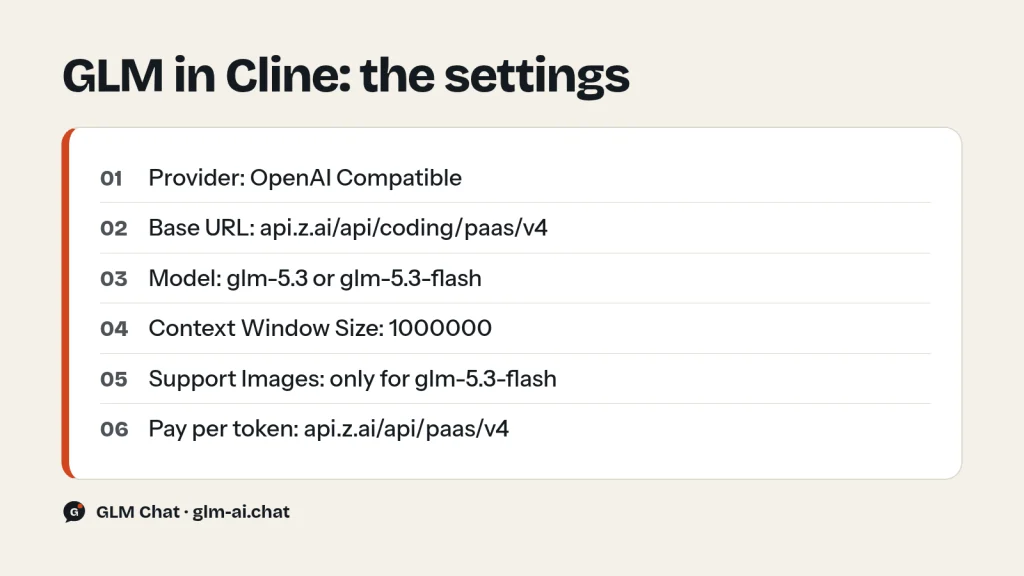
In the Cline panel, choose Use your own API Key, then fill in these settings:
| Setting | Value |
|---|---|
| API Provider | OpenAI Compatible |
| Base URL | https://api.z.ai/api/coding/paas/v4 |
| API Key | your Z.ai API key |
| Model | Use custom: glm-5.3 or glm-5.3-flash |
| Support Images | Off for glm-5.3, on allowed for glm-5.3-flash |
| Context Window Size | 1000000 |
| Temperature | Adjust to the task |
- Set API Provider to
OpenAI Compatible. Do not pick a provider preset for another vendor; the OpenAI Compatible option is what lets you enter Z.ai’s URL. - Enter the Base URL exactly:
https://api.z.ai/api/coding/paas/v4. This coding endpoint is what ties requests to your plan quota. - Paste your API Key.
- Under Model, choose to use a custom model and type the model ID,
glm-5.3orglm-5.3-flash, in lowercase. - Set Support Images: leave it unchecked for GLM-5.3, which is text-only. You can check it for GLM-5.3-Flash, which is natively multimodal.
- Set Context Window Size to
1000000. Both plan models have a 1M-token context window. - Adjust temperature and any other parameters to your task, then save.
Type a task into Cline’s input box, for example “Explain what this file does and suggest a refactor”. If you get an answer, the connection works.
Which GLM model to use in Cline
The Coding Plan serves two models, and each one suits a different kind of Cline session.
| Model ID | glm-5.3 | glm-5.3-flash |
|---|---|---|
| Role | Flagship coding model | Fast, multimodal model |
| Input | Text only | Text, images, video, files |
| Context / output | 1M / 128K | 1M / 128K |
| Support Images in Cline | Unchecked | Can be checked |
| Plan credits | 6.9 / 1.7 / 24 | 2.3 / 0.56 / 8 |
| API price per 1M tokens | $1.40 / $0.26 / $4.40 | $0.15 / $0.03 / $0.50 |
Pick GLM-5.3 for work where a wrong step is expensive: multi-file refactors, debugging something subtle, planning a feature. Z.ai reports GLM-5.3 improves 50% over GLM-5.2 on its in-house Z.ai Code Bench. Pick GLM-5.3-Flash for routine edits, tests, documentation and anything involving a screenshot, because it costs a third of the credits and can see images. Swap the model ID whenever a session changes character; it takes seconds.
What about glm-5.2 in Cline?
Z.ai’s Cline page still shows glm-5.2 as its example model, with a context window of 1000000 for glm-5.2 and 200000 for other models. That page predates GLM-5.3. On the plan, requests for GLM-5.2 and GLM-5.1 are routed to GLM-5.3, and GLM-4.7 requests to GLM-5.3-Flash. Z.ai’s newer model-switching guide sets the context window to 1000000 for both current models. Use glm-5.3 or glm-5.3-flash directly so the model name in Cline matches the model you are billed for.
Temperature and thinking settings
GLM’s temperature range is 0.0 to 1.0, and the default for the GLM-5 family is 1.0. For GLM-5.3-Flash, Z.ai’s recommended settings are temperature 1 and top_p 0.95. Z.ai also advises changing only one of temperature and top_p, not both. Values above 1.0 are out of range and cause a 400 error.
Both plan models always think before they answer; thinking cannot be turned off on GLM-5.3 or GLM-5.3-Flash, and on the regular API sending "thinking": {"type": "disabled"} to glm-5.3 makes the request fail. On the Coding Plan endpoint, preserved thinking is on by default, which keeps the model’s reasoning between turns in agent loops. The default reasoning effort is max. See our GLM thinking mode guide for effort levels and how they affect output tokens.
Add Z.ai’s MCP servers to Cline
Every Coding Plan tier includes Vision Understanding, Web Search, Web Reader and Zread MCP servers. Add them in Cline’s MCP server settings. Replace your_api_key with your Z.ai key.
Web Search, Web Reader and Zread are remote HTTP servers:
{
  "mcpServers": {
    "web-search-prime": {
      "type": "streamableHttp",
      "url": "https://api.z.ai/api/mcp/web_search_prime/mcp",
      "headers": {
        "Authorization": "Bearer your_api_key"
      }
    },
    "web-reader": {
      "type": "streamableHttp",
      "url": "https://api.z.ai/api/mcp/web_reader/mcp",
      "headers": {
        "Authorization": "Bearer your_api_key"
      }
    },
    "zread": {
      "type": "streamableHttp",
      "url": "https://api.z.ai/api/mcp/zread/mcp",
      "headers": {
        "Authorization": "Bearer your_api_key"
      }
    }
  }
}
If your Cline version is too old for the streamableHttp type, Z.ai documents an SSE alternative for each server, for example:
{
  "mcpServers": {
    "web-search-prime": {
      "type": "sse",
      "url": "https://api.z.ai/api/mcp/web_search_prime/sse?Authorization=your_api_key"
    }
  }
}
The Vision server runs locally through npx and needs Node.js 22 or newer:
{
  "mcpServers": {
    "zai-mcp-server": {
      "type": "stdio",
      "command": "npx",
      "args": [
        "-y",
        "@z_ai/mcp-server"
      ],
      "env": {
        "Z_AI_API_KEY": "your_api_key",
        "Z_AI_MODE": "ZAI"
      }
    }
  }
}
The Vision server is what gives text-only GLM-5.3 a way to read UI mockups, error screenshots and diagrams. Each Web Search, Web Reader or Zread call costs 1.2 plan credits; vision usage is billed at GLM-5.3-Flash rates. For search outside the plan, see the GLM web search API guide.
Pay-as-you-go alternative: the regular GLM API in Cline
You do not need a subscription to use GLM in Cline. The same OpenAI Compatible provider works with Z.ai’s general API. Change two things:
- Base URL:
https://api.z.ai/api/paas/v4(the general API, not the coding endpoint). - Model: any model ID your account can call, for example
glm-5.3,glm-5.3-flash,glm-5.2or the freeglm-4.7-flash.
Usage is then billed per token from your account balance. Set the context window to match the model: 1M for GLM-5.3, GLM-5.3-Flash and GLM-5.2, 200K for GLM-5.1, GLM-5, GLM-4.7, GLM-4.7-Flash and GLM-4.6.
| Model ID | Context | Price |
|---|---|---|
| glm-5.3 | 1M | $1.40 / $0.26 / $4.40 |
| glm-5.2 | 1M | $1.40 / $0.26 / $4.40 |
| glm-5.3-flash | 1M | $0.15 / $0.03 / $0.50 |
| glm-4.7 | 200K | $0.60 / $0.11 / $2.20 |
| glm-4.7-flash | 200K | Free |
GLM-4.7-Flash is free on the Z.ai API: input, cached input and output all cost nothing, limited only by your account’s rate limits. It is a 30B-A3B model, far smaller than GLM-5.3, but for learning Cline, small scripts or a zero-budget setup it is hard to beat. The GLM API quickstart shows how to create a key and test it with curl before you wire it into Cline.
One caveat from Z.ai’s GLM-5.3 docs: if your account has ever had a Coding Plan subscription, including an expired one, you can currently reach GLM-5.3 on the API only through the OpenAI Chat Completions-compatible protocol. That is exactly the protocol Cline’s OpenAI Compatible provider uses, so Cline is unaffected.
Via OpenRouter
OpenRouter also lists the GLM models and exposes an OpenAI-compatible API at https://openrouter.ai/api/v1, so the same Cline provider can use it with slugs such as z-ai/glm-5.3 or z-ai/glm-5.3-flash. OpenRouter’s listed prices change often; check each model’s OpenRouter page before you commit.
Plan or pay-as-you-go for Cline?
Cline is an agent: it resends your files and conversation on every step, so a single task can easily run 30 or 40 model calls with large, mostly cached contexts. That pattern is where the plan pays off. One step with 100,000 context tokens (95,000 cached) and 2,000 output tokens costs 24.4 plan credits or $0.0405 on the pay-as-you-go API with GLM-5.3. At that rate, Lite’s $18 a month equals about 445 steps on the API, while Lite’s weekly allowance alone covers about 410 such steps at peak rates and about 820 off-peak.
- Choose the plan if you use Cline most working days with GLM-5.3. Weekday peak hours are 14:00–18:00 UTC+8; the rest of the week costs half the credits.
- Choose pay-as-you-go if you use Cline a few times a month, mostly run GLM-5.3-Flash (already cheap at $0.15/$0.50 per 1M tokens), or want the free GLM-4.7-Flash.
The full tier table, worked credit math and promotions are in our GLM Coding Plan guide, and every API price is on the GLM pricing page.
Making plan credits last longer in Cline
Plan credits come from a simple formula, (input × multiplier + cached input × multiplier + output × multiplier) / 10,000, so a few habits change how far a Lite or Pro allowance goes in Cline:
- Protect the cache. On GLM-5.3, a cached input token costs 1.7 credits per 10,000 against 6.9 for a new one. Long sessions on the same files stay cheap; constantly switching projects or clearing context throws that away.
- Watch output. Output is the priciest part at 24 credits per 10,000 tokens on GLM-5.3. Ask for diffs or focused changes rather than whole-file rewrites when you can.
- Route routine work to Flash. GLM-5.3-Flash costs exactly a third of GLM-5.3 on input and output. Tests, docstrings, renames and small fixes rarely need the flagship.
- Work off-peak. Outside Monday–Friday 14:00–18:00 UTC+8, model usage costs 50% of the credits.
- Keep parallel work within your tier. Z.ai recommends Lite for one project at a time, Pro for one or two and Max for two or more. Running more at once mostly produces rate-limit errors, not faster results.
The same setup in other OpenAI-compatible tools
Z.ai’s core recipe for any OpenAI-compatible coding tool is three steps: choose the OpenAI Chat Completions protocol, set the base URL to https://api.z.ai/api/coding/paas/v4, then enter your key and a GLM model.
- Kilo Code (VS Code): choose “Use your own API Key”, set API Provider to
Z AI, choose theInternational Coding Plan (https://api.z.ai/api/coding/paas/v4/)entrypoint, paste your key and select a model. Update the extension if that entrypoint is missing. - Claude Code uses the Anthropic protocol instead, with base URL
https://api.z.ai/api/anthropic. See how to use GLM in Claude Code. - OpenClaw has its own Z.ai provider; see GLM with OpenClaw.
- Codex uses the OpenAI Responses protocol at
https://api.z.ai/api/v1.
Troubleshooting GLM in Cline
Error 1113 “Insufficient Balance” on the plan
The request is not being matched to your plan. Check that the base URL is the coding endpoint https://api.z.ai/api/coding/paas/v4 and not the general /api/paas/v4, that the model is glm-5.3 or glm-5.3-flash, and that the key comes from the account holding the plan. On pay-as-you-go, 1113 simply means your account balance is empty.
Error 1211 “unknown model”
The model ID is misspelled or not available. Use lowercase IDs with a dot, such as glm-5.3, not GLM 5.3 or glm-5-3.
Images are ignored or requests with images fail
GLM-5.3 is text-only, and Z.ai’s settings say to uncheck Support Images for it. Switch to glm-5.3-flash whenever you need the model to see a screenshot, or add the Vision MCP server so GLM-5.3 can call it.
429 errors partway through a task
Codes 1308, 1310 and 1316–1321 mean a plan limit (5-hour or weekly) has run out; wait for the reset shown in the message. Codes 1302 and 1305 mean request rate limiting or temporary overload; retry after a short pause. Our GLM rate limits and error codes guide covers every code, and the GLM not working checklist covers wider outages.
The context fills up too early
Check Context Window Size. If it is still at 200000 from an old setup, Cline compacts or truncates long before the 1M limit of GLM-5.3 and GLM-5.3-Flash.
Want to see how the models respond before configuring anything? Try GLM-5.3-Flash in our free GLM chat or chat with GLM-5.3, no sign-up needed.
GLM Cline FAQ
What base URL do I use for Z.ai in Cline?
https://api.z.ai/api/coding/paas/v4 for the GLM Coding Plan, with the API Provider set to OpenAI Compatible. For pay-as-you-go billing use https://api.z.ai/api/paas/v4 instead.
Which model ID should I enter in Cline?
glm-5.3 for the strongest coding results or glm-5.3-flash for cheaper, faster work with image support. Those are the two models on the Coding Plan.
Is GLM free in Cline?
GLM-4.7-Flash is free on the Z.ai pay-as-you-go API, so you can use it in Cline at no cost with the base URL https://api.z.ai/api/paas/v4 and model ID glm-4.7-flash. GLM-5.3 and GLM-5.3-Flash need either API balance or a Coding Plan.
Should I check Support Images for GLM in Cline?
Only for glm-5.3-flash, which accepts images. Leave it unchecked for glm-5.3, which is text-only.
What context window size should I set in Cline for GLM?
1,000,000 for GLM-5.3, GLM-5.3-Flash and GLM-5.2; 200,000 for GLM-5.1, GLM-4.7 and older 200K models.
Does Cline share the Coding Plan quota with Claude Code?
Yes. All supported tools draw on the same quota under your subscription, so heavy use in Claude Code leaves fewer credits for Cline in the same 5-hour window and week.